
Auto-configuring Meta Quest headsets for classroom use with ADB
Table of Contents
To run a demo with some Meta Quest headsets, you need to be able to keep them connected to WiFi and keep their display on. Unfortunately, they ship with consumer defaults that fight you on that. The SIMPLE Project handles this by pushing a complete ADB configuration profile every time a headset connects to the platform. Here’s what the headset tries to do, why it breaks your demo, and how SIMPLE stops it.
Precisely, the use in the SIMPLE Project is by bringing a M2L2 (an all-in-one device including an offline WiFi router, six Meta Quest headsets, and a computer running software; everything interconnected) into classrooms to easily use VR in ASEAN schools.
Most of the configuration presented here is made precisely for this use case.
WiFi disconnects on networks without internet
If your setup runs on a local network with no internet access, the Quest will eventually disconnect. Android continuously tests whether WiFi has internet access, and when the check fails, it flags the network as bad, shows a No internet access warning.
On regular Android that’s not too much of an issue, but Meta hates that (they want your data) and auto-disconnects to “avoid the inconvenience of not having internet” or something. Also Meta disable the automatic connection to a network tagged as No internet access, being a major issue in a game session to run LAN games…
SIMPLE fixes this by disabling the network probes entirely, so no wifi network can be flagged.
Disabling Captive Portal detection
Android pings Google servers to check for captive portals, the login pages you see at hotels and airports. On an offline network, these requests time out, and Android interprets that as a connectivity problem. To spoof this, I simply disabled captive portal detection and points the probe URLs at localhost so they always answer instead of failing outward:
captive_portal_detection_enabled: 0
captive_portal_mode: 0
captive_portal_server: "localhost"
captive_portal_https_url: "https://localhost"
captive_portal_http_url: "http://localhost"
private_dns_mode: "off" handles a related issue: Android’s private DNS feature (DNS-over-TLS) tries to connect to hardcoded DNS servers. On an offline network, these connections fail and can trigger additional disconnect logic. Turning it off removes that failure path.
Disabling every WiFi auto-switcher
Even with captive portal detection disabled, Android has multiple watchdog services that will abandon a network they don’t like. SIMPLE disables all of them:
wifi_watchdog_on: 0
wifi_watchdog_poor_network_test_enabled: 0
network_recommendations_enabled: 0
network_avoid_bad_wifi: 0
wifi_passpoint_enabled: 0
wifi_enhance_network_while_sleeping: 0
The WiFi watchdog roams to another network or drops the connection when it thinks quality is poor. network_avoid_bad_wifi does exactly what it says: it disconnects from networks without internet. network_recommendations_enabled pops up suggestions to switch networks, which is disruptive mid-demo. wifi_passpoint_enabled disables automatic authentication with carrier hotspot networks, which is irrelevant in most setups but removes another background process that could interfere.
wifi_sleep_policy: 2 keeps WiFi active when the device sleeps. Without this, a headset that dozes briefly drops its connection and you have to manually reconnect it. Annoying.
wifi_networks_available_notification_on: 0 and netstats_enabled: 0 remove the last two sources of network-related noise: popups about other nearby networks, and background data usage tracking. Less background activity means fewer opportunities for the system to interrupt the connection.
The headset goes to sleep mid-session
A Meta Quest headset is quite battery hungry because of all the processing it has to do (6 DOF, heavy graphical computing, etc), and having 30~60 minutes of battery life is bad press. So a Meta Quest headset is the laziest device in the world and try to sleep as much as it can.
For instance, a stock Quest falls asleep after a few minutes of idle time. In any demo or session, “idle” happens constantly as someone waiting for instructions, a discussion, a presenter demonstrating something on the projector. If the headset sleeps, the player drops from the simulation (disconnect from the backend server) and has to wake it, reconnect, and rejoin. SIMPLE prevents this at three layers.
Set Android to never sleeps
stay_on_while_plugged_in: 15This is a bitmask. Each bit controls a different power source:
| Bit | Value | Power Source |
|---|---|---|
| 0 | 1 | AC adapter |
| 1 | 2 | USB |
| 2 | 4 | Wireless charging |
| 3 | 8 | Docked |
1 + 2 + 4 + 8 = 15, so the screen stays on across all four conditions. In a setup where headsets sit on USB charging cables or charging stands between uses, this alone prevents most mid-session blackouts.
screen_off_timeout: 86400000  // 24 hours
sleep_timeout: -1             // Disabled entirely
screen_off_timeout lives in the system settings namespace and controls when the display subsystem turns off the screen. sleep_timeout lives in the secure namespace and governs when the entire device enters deep sleep. SIMPLE sets both to never trigger.
Meta’s OVR Layer: Four-hours safety window
Meta adds its own logical layer, touching obviously to the lazyness sleep logic on top of Android, controlled through the PreferencesService binder interface:
idle_time_threshold: 14400   // Display off after 4 hours
autosleep_time: 14400        // Sleep mode after 4 hours
Both values are in seconds. Four hours covers a full session with breaks, but still lets a forgotten headset power down eventually instead of sitting awake overnight. The code checks the current value via getprop and only writes if it changed, so repeated reconnections don’t waste calls.
You can also set autosleep_time through the headset’s system settings GUI, it’s probably the only setting from this entire article that’s exposed in the interface. But SIMPLE sets it via ADB anyway as part of the automated configuration.
The proximity sensor blacks out the display
This one is interesting! 😋
When you remove a Quest headset, a proximity sensor detects the gap and blacks out the display to save power (or doze if you didn’t applied any of the above parameters, remember: lazy device). In any multi-user setup, demo, else, headsets get passed around or set on charging stations between activities. If the display blacks out, the streaming session breaks and the next person sees a dark screen instead of the simulation.
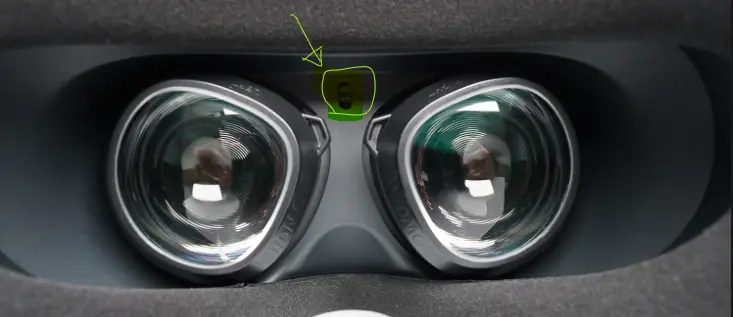
SIMPLE disable this behavior by sending a broadcast on each headset’s boot:
am broadcast -a com.oculus.vrpowermanager.prox_closeThis forces the power manager to treat the headset as currently worn. The display stays on even when the headset is sitting on a charging stand or being handed from one user to the next, so the stream keeps flowing uninterrupted. The disadvantage is the battery life which is the most impacted by it.
A lot of people (as well as us first) are putting opaque tape or similar on the sensor to fake it. But, from our experience, it’s not that much reliable and created a lot of instability on some units. This method is better.
Maintenance: Keeping the fleet in a static state
Beyond the session fixes, SIMPLE tweaks the devices with a maintenance layer that keeps the equipment stable over time. I don’t want any new firmware changes overnight or connection drift breaking my setup in the morning of an exhibition…
Restrict firmware updates
ota_disable_automatic_update: 1A system update downloading during a session, or worse, forcing an unexpected reboot, can end a demo. This stops Android’s OTA updates from triggering automatically.
am set-standby-bucket com.oculus.updater restricted
am set-standby-bucket com.oculus.nux.ota restricted
cmd appops set com.oculus.updater RUN_ANY_IN_BACKGROUND deny
cmd appops set com.oculus.nux.ota RUN_ANY_IN_BACKGROUND deny
com.oculus.updater and com.oculus.nux.ota handle Meta’s layer for firmware updates and telemetry. With restricted standby buckets and background execution denied, they cannot wake the headset. This pairs with ota_disable_automatic_update: 1 at the global settings level makes a two-layer defense against a fleet of headsets deciding to search and download a system update at anypoint.
Disabling auto-updates keeps your fleet in a known software state, which is what you want for reproducible demos. Just remember to manually update the headsets between projects if you need security patches or new features.
Keep the ADB session alive
adb_allowed_connection_time: 9007199254740991 // ~285 years, effectively neverMeta’s Android build times out ADB debugging sessions. When it expires, the headset drops from the platform and you have to re-authorize the host (to make this point clear, it’s not ADB which is not up, but it refuses to connect with old paired device, ie. the server). Setting this to MAX_SAFE_INTEGER means the session survives indefinitely.
SIMPLE also installs eu.project_simple.adbautoenable, a companion app that keeps the ADB connection alive and handles re-authorization automatically. I already presented how it works in a previous article : https://arthurbrugiere.fr/blog/mq3-wireless-adb/
Conclusion
You pretty much broke all the engineering Meta put in their devices to give the players a nice experience, but you succeed to have device which works as you would expect in an exhibition or a classroom.
At least I’m happy to run them in the project now 😁